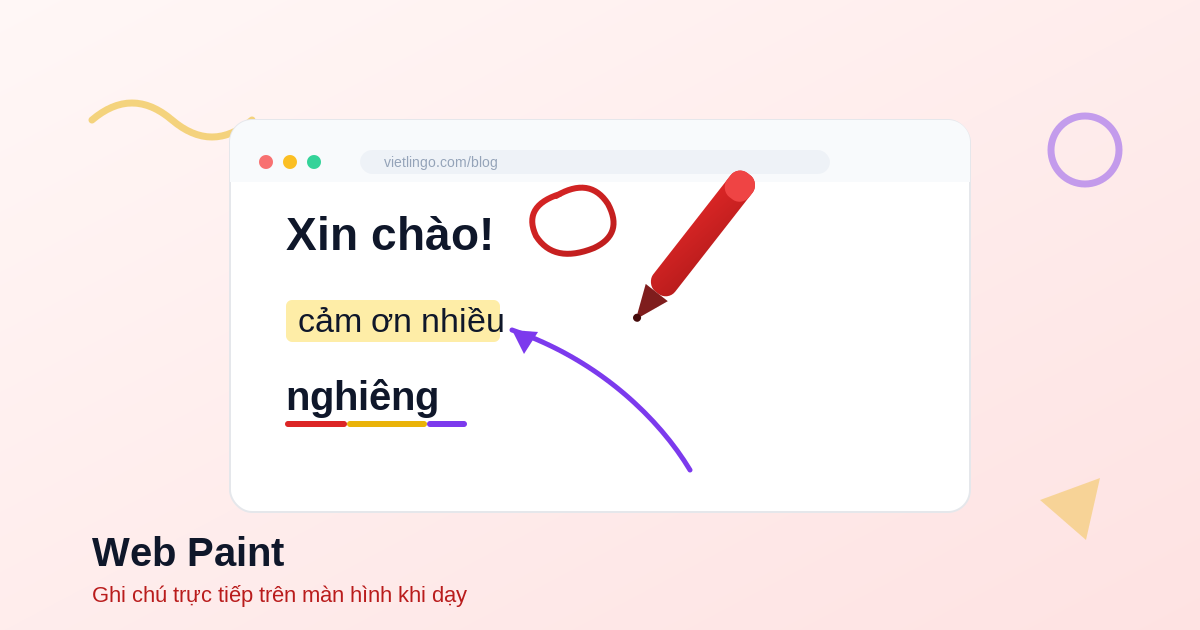
Sometimes while teaching online you just want to "pick up a pen" and point right at the screen: circle a hỏi tone, underline a final consonant, or highlight a new word. Web Paint – Page Marker & Editor is a free Chrome extension that lets you do exactly that — draw and write on top of any web page, including your textbook, a Vietlingo blog article, or whatever you're screen-sharing in the classroom.
What can Web Paint do?
One click brings up a drawing toolbar, and you can annotate straight on the page:
Freehand pen
circle, underline, connect
Highlighter
spotlight vocabulary
Lines, arrows & boxes
point and group ideas
Text notes
type straight on the page
Eraser & clear
fix or start over
Colours & thickness
a palette and pen sizes
Undo / redo
step back safely
Screenshot
save the annotated page
Any website
toggle on and off anytime
How do I install it?
- Open the Chrome Web Store and search "Web Paint – Page Marker" (or use the button at the end).
- Click "Add to Chrome" → "Add extension".
- Pin it: click the puzzle-piece icon in the toolbar, then the pin next to Web Paint so it's always one click away.
How do I use it?
- Open the page you want to annotate (textbook, a lesson, a Vietlingo page…).
- Click the Web Paint icon in the toolbar — a drawing toolbar appears.
- Choose a tool (pen, highlighter, shape, text), pick a colour and thickness, and draw right on the screen.
- Made a mistake? Use Undo or the Eraser; start over with Clear all.
- Need to scroll or click a link? Turn drawing off (click the icon again) and use the page normally.
- Want to keep it? Hit Screenshot to save an image of the annotated page.
6 tips for teaching Vietnamese
- Mark the tones. Circle or colour the sắc / huyền / hỏi / ngã / nặng marks so students see the tone, not just hear it.
- Break the syllable apart. Underline the initial, the rhyme and the final in three different colours (e.g. "ng-", "-iê-", "-ng") to make the structure clear.
- Spotlight sentence patterns. Highlight a grammar pattern, then draw an arrow linking subject and predicate.
- Colour by region. Use the Vietlingo palette — red = Southern, yellow = Northern, purple = Central — to contrast pronunciation and vocabulary across the three dialects.
- Correct live. When a student shares their writing or a web page, circle the error and write a hint right beside it — far clearer than typing.
- Send a "recap" after class. Screenshot the annotated page and send it to your student as revision notes.
A few reminders
A few reminders
- Annotations aren't saved automatically — to keep them, take a screenshot before you leave the page.
- Remember to turn drawing off when you need to scroll or click links.
- Don't cover important content; thin strokes and a few colours usually read best.
- The extension only draws on top of the page — it never changes the real website.
Get started
A few minutes to get used to it and Web Paint becomes your on-screen whiteboard marker for every Vietlingo lesson. Happy teaching!




Comments (0)
A new word, a question, or a different perspective? Share it with fellow learners.
Be the first to comment.